
How to Remove Contact from Toyota Home Screen
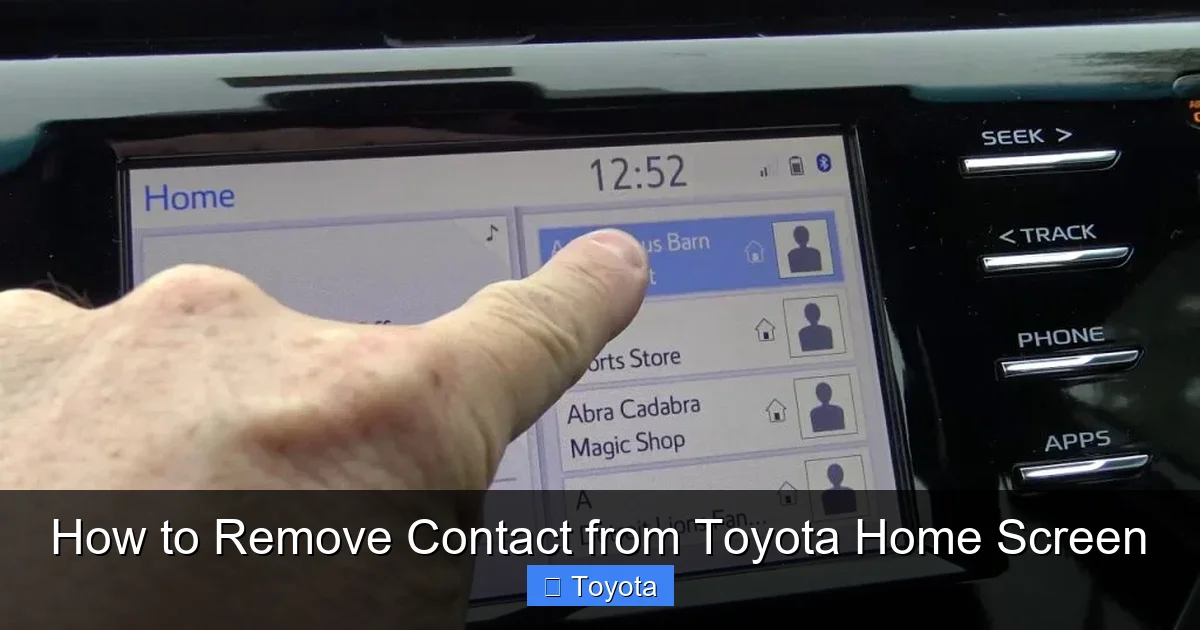
Need to remove a saved contact from your Toyota home screen? This guide shows you the simple steps, common menu paths, and easy fixes for most Toyota infotainment systems. Whether you use Toyota Audio Multimedia, Entune, or an older display, you’ll learn how to delete a contact safely and keep your home screen clean.
Key Takeaways
- Check your system first: Toyota uses different infotainment setups, so the steps can change by model and year.
- Go to the phone or favorites menu: Most saved contacts can be removed from the Phone, Favorites, or Home screen settings.
- Use the edit or delete option: Look for “Edit,” “Remove,” “Delete,” or a trash icon next to the contact.
- Some contacts are synced: If the contact comes from your phone, you may need to remove it from your phone or disconnect Bluetooth.
- Restart if needed: A quick system reboot can help if the contact stays stuck on the screen.
- Keep your screen organized: Removing old contacts can make driving safer and faster.
- Know when to reset: If nothing works, a soft reset or dealer help may be the best next step.
📑 Table of Contents
- How to Remove Contact from Toyota Home Screen
- Why Contacts Show Up on the Toyota Home Screen
- How to Remove Contact from Toyota Home Screen Step by Step
- What to Do If the Contact Will Not Delete
- Model and System Differences You Should Know
- Helpful Tips for Keeping the Toyota Home Screen Clean
- When You May Need Professional Help
- Conclusion
How to Remove Contact from Toyota Home Screen
If your Toyota home screen is full of old names, favorite numbers, or contacts you no longer use, you are not alone. Many Toyota drivers want a clean screen that is easy to read and simple to use. The good news is that learning how to remove contact from Toyota home screen is usually quick once you know where to look.
The only tricky part is that Toyota infotainment systems are not all the same. Some models use Toyota Audio Multimedia. Others use Entune or older touch-screen layouts. That means the exact buttons may change. Still, the basic process is very similar across most systems. In this guide, I’ll walk you through the steps in plain language so you can clear unwanted contacts with confidence.
If you like simple Toyota how-to guides, you may also find our article on how to remove a contact from the Toyota home screen helpful for a quick reference while you follow along.
Why Contacts Show Up on the Toyota Home Screen
Saved favorites and synced phone contacts
Before you remove anything, it helps to know why the contact is there in the first place. In many Toyota vehicles, the home screen can show phone favorites, recent calls, or pinned shortcuts. Some contacts are saved inside the car system itself. Others are pulled from your phone through Bluetooth.
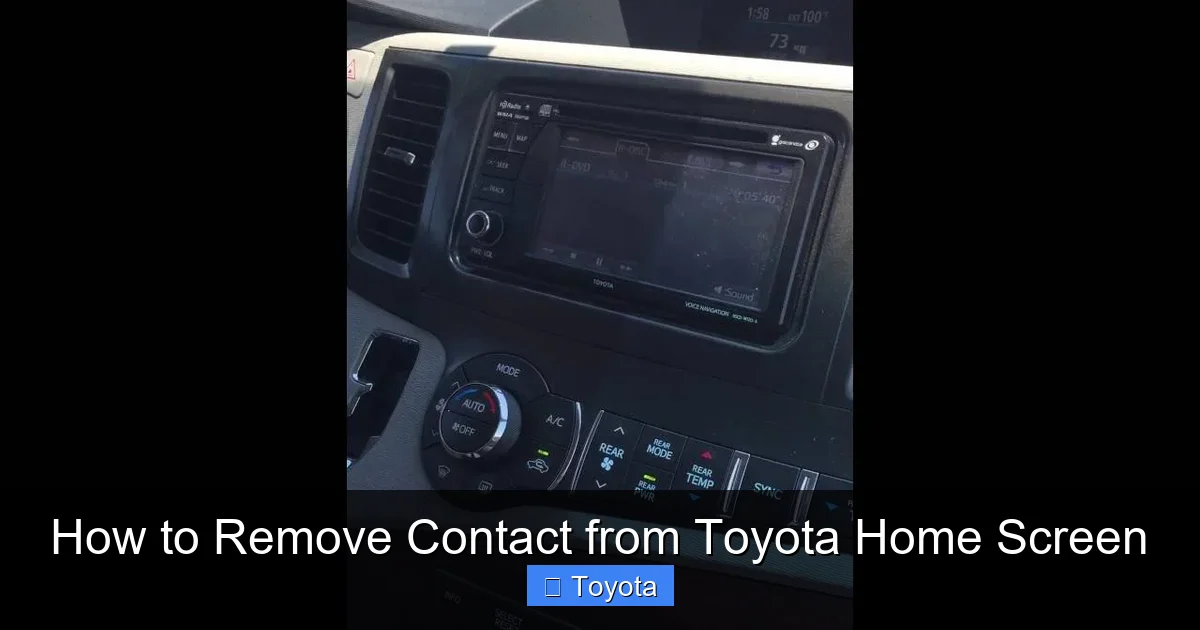
Visual guide about How to Remove Contact from Toyota Home Screen
Image source: thecarhow.com
That is why a contact may come back even after you think you deleted it. The car may still be reading the contact list from your phone. So when you are learning how to remove contact from Toyota home screen, you need to know whether the contact is stored in the Toyota system or on your phone.
Different Toyota systems behave differently
A 2024 Toyota Camry may not work exactly like a 2018 RAV4. Newer systems often have a cleaner menu and better phone controls. Older systems may hide the delete option inside a small settings menu. If you cannot find the right button right away, do not worry. It usually means the contact is in a different menu, not that the feature is missing.
How to Remove Contact from Toyota Home Screen Step by Step
Step 1: Turn on the vehicle and open the main screen
Start your Toyota and wait for the infotainment system to load. From the home screen, look for the Phone, Contacts, or Favorites icon. In many systems, that is where the saved contact lives.
Visual guide about How to Remove Contact from Toyota Home Screen
Image source: thecarhow.com
If your screen has a shortcut tile for the contact, tap it once. This often opens the contact details page. From there, you should see options like Edit, Remove, or Delete.
Step 2: Open the contact list or favorites list
Tap the phone menu and choose the contact list. If the name appears in a favorites section, open that area instead. Toyota often places frequently used numbers there for fast access. This is useful when driving, but it can also leave old contacts on the screen longer than you want.
Once you find the name, check for a small menu icon, a star icon, or three dots. These usually hide the remove option. If you are trying to clean up your display, this is the key step in how to remove contact from Toyota home screen.
Step 3: Select edit or delete
After opening the contact, look for Edit, Delete, or Remove from favorites. Some Toyota systems only let you remove a contact from the home screen without deleting it from the full address book. That is helpful if you still want the number saved, but you do not want it visible as a shortcut.
If you see a trash can icon, tap it. If the system asks you to confirm, choose Yes or OK. Some screens also ask if you want to remove the contact from the car, the phone, or both. Be careful here. If you only want the home screen cleaned up, choose the option that removes the shortcut, not the whole phone contact.
Step 4: Confirm the change
After you delete or remove the contact, go back to the home screen and check that it is gone. If the contact was pinned as a favorite, it should disappear right away. If it was synced from your phone, you may need one more step. In that case, disconnect Bluetooth for a moment and reconnect it. That refresh often clears old display data.
For more Toyota display and settings help, our guide on how to change the startup screen on a 2022 Toyota can also help you understand where Toyota hides screen settings.
What to Do If the Contact Will Not Delete
Check your phone sync settings
Sometimes the contact keeps coming back because your phone is still sending it to the car. This is very common with Bluetooth contacts. If that happens, open your phone’s Bluetooth settings and look for your Toyota connection. Turn off contact sharing if you do not want the car to copy your address book.
You can also remove the pairing and set it up again. That often fixes strange contact issues. If you are trying to learn how to remove contact from Toyota home screen, this is one of the most important troubleshooting steps.
Restart the infotainment system
Many Toyota systems will clear small glitches after a restart. You can usually do this by turning the car off, opening and closing the driver door, waiting a minute, and starting it again. Some systems also have a reset button or a reboot option in the settings menu.
If the contact still shows after a restart, do not panic. The system may just need a full refresh. Try removing the contact again after the reboot. This simple step often works better than people expect.
Delete the contact from your phone
If the contact is not needed anymore, remove it from your phone too. That way, the Toyota system cannot sync it back later. This is especially useful if you share the car with family members or have old work numbers saved on your device.
Remember, the contact may appear in more than one place. You may need to delete it from the Toyota favorites list, the in-car phonebook, and your phone contacts. That is the cleanest way to finish the job.
Model and System Differences You Should Know
Newer Toyota Audio Multimedia systems
Newer Toyota models often make contact management easier. The menus are cleaner, and the delete option is easier to find. You may see tabs for Phone, Apps, Favorites, and Settings. In these systems, removing a contact from the home screen usually takes only a few taps.
Still, the exact wording may change. One model may say Remove Favorite, while another says Unpin. The meaning is the same. You are just clearing the shortcut from the home screen.
Older Entune and basic Toyota screens
Older Toyota infotainment systems may hide the contact options deeper in the menu. You may need to enter the phonebook, choose a name, and then press a small arrow or settings icon. Some older screens also use physical buttons near the display. If you cannot find the touch option, check for those buttons around the screen.
These older systems can be a little slower, so give the screen a few seconds after each tap. If it does not respond right away, wait before tapping again. That can prevent extra menu changes.
Practical example
Let’s say you have a 2021 Toyota Highlander and your home screen still shows an old work contact. You tap the contact, open the details page, and see a star next to the name. That star likely means it is a favorite. Tap the star again or choose Remove from Favorites. Then go back to the home screen and confirm that the shortcut is gone.
If the contact comes back after you restart the car, check your phone’s Bluetooth settings. The number may still be syncing from your mobile device. This is a common issue, and it is usually easy to fix.
Helpful Tips for Keeping the Toyota Home Screen Clean
Remove unused favorites often
A clean screen is easier to use while driving. Old contacts can make the display feel crowded. Try to review your favorites every few months and remove numbers you no longer call. This keeps the screen simple and easier to read at a glance.
Use labels that make sense
If your Toyota system lets you rename contacts, use clear names. For example, save “Mom Mobile” instead of just “Mom.” That makes it easier to spot the right contact and avoid mistakes. It also helps when you are trying to remove the correct entry from the home screen.
Keep your phone book organized
Since Toyota often syncs with your phone, a messy phone contact list can create a messy car screen. Delete duplicates on your phone. Merge repeated entries. Remove old numbers. A cleaner phone usually means a cleaner Toyota display.
Use the car safely
If you are driving, do not try to dig through menus. Pull over first. Touch-screen menus can distract you fast. The best time to learn how to remove contact from Toyota home screen is when the car is parked and safe.
For more Toyota maintenance and system tips, you may also like our guide on how to remove Toyota maintenance required light, which follows a similar simple-step approach.
When You May Need Professional Help
If the screen freezes or the contact returns every time
If you have tried everything and the contact still will not go away, the infotainment system may have a deeper issue. A frozen screen, bad sync data, or a software bug can cause the same contact to return again and again.
In that case, a dealer or Toyota service center can help. They may perform a software update or a system reset. This is rare, but it does happen. If your vehicle is still under warranty, it is worth asking for help.
If your model has special settings
Some Toyota trims have extra phone memory or profile settings. If more than one driver uses the vehicle, the contact may belong to another profile. Check the user profile or driver memory settings if the contact keeps showing up. Sometimes the fix is as simple as switching profiles or deleting the contact from the correct user account.
Conclusion
Learning how to remove contact from Toyota home screen is not hard once you know where Toyota hides the menu. In most cases, you can open the phone or favorites list, select the contact, and choose remove or delete. If the contact comes back, the issue is usually sync-related, which means you may need to adjust your phone settings too.
The best approach is to work step by step. Check the car screen first. Then check your phone. Restart the system if needed. And if the contact still refuses to leave, a dealer visit may be the final fix. With a little patience, you can keep your Toyota screen neat, clear, and easy to use every day.
Frequently Asked Questions
How do I remove a contact from the Toyota home screen?
Open the Phone or Favorites menu on your Toyota screen, select the contact, and choose Remove, Delete, or Unpin. If the contact is synced from your phone, you may also need to adjust Bluetooth settings on your device.
Why does the contact keep coming back on my Toyota screen?
This usually happens because the contact is still syncing from your phone. Turn off contact sharing in Bluetooth settings, or delete the contact from your phone if you no longer need it.
Can I remove a contact without deleting it from my phone?
Yes, in many Toyota systems you can remove only the shortcut or favorite from the home screen. The full contact may still stay saved on your phone or in the car’s contact list.
What if I cannot find the delete option?
Look for a small settings icon, three dots, or a star next to the contact. On older Toyota systems, the delete option may be inside a deeper menu or behind a physical button near the screen.
Will restarting the car help remove the contact?
Sometimes it will. A restart can clear small screen glitches and refresh synced data. If the contact still appears after restarting, check your phone sync settings next.
Do all Toyota models use the same steps?
No, the menu names and screen layout can change by model year and trim. The process is usually similar, but newer systems often make it easier to remove contacts from the home screen.


